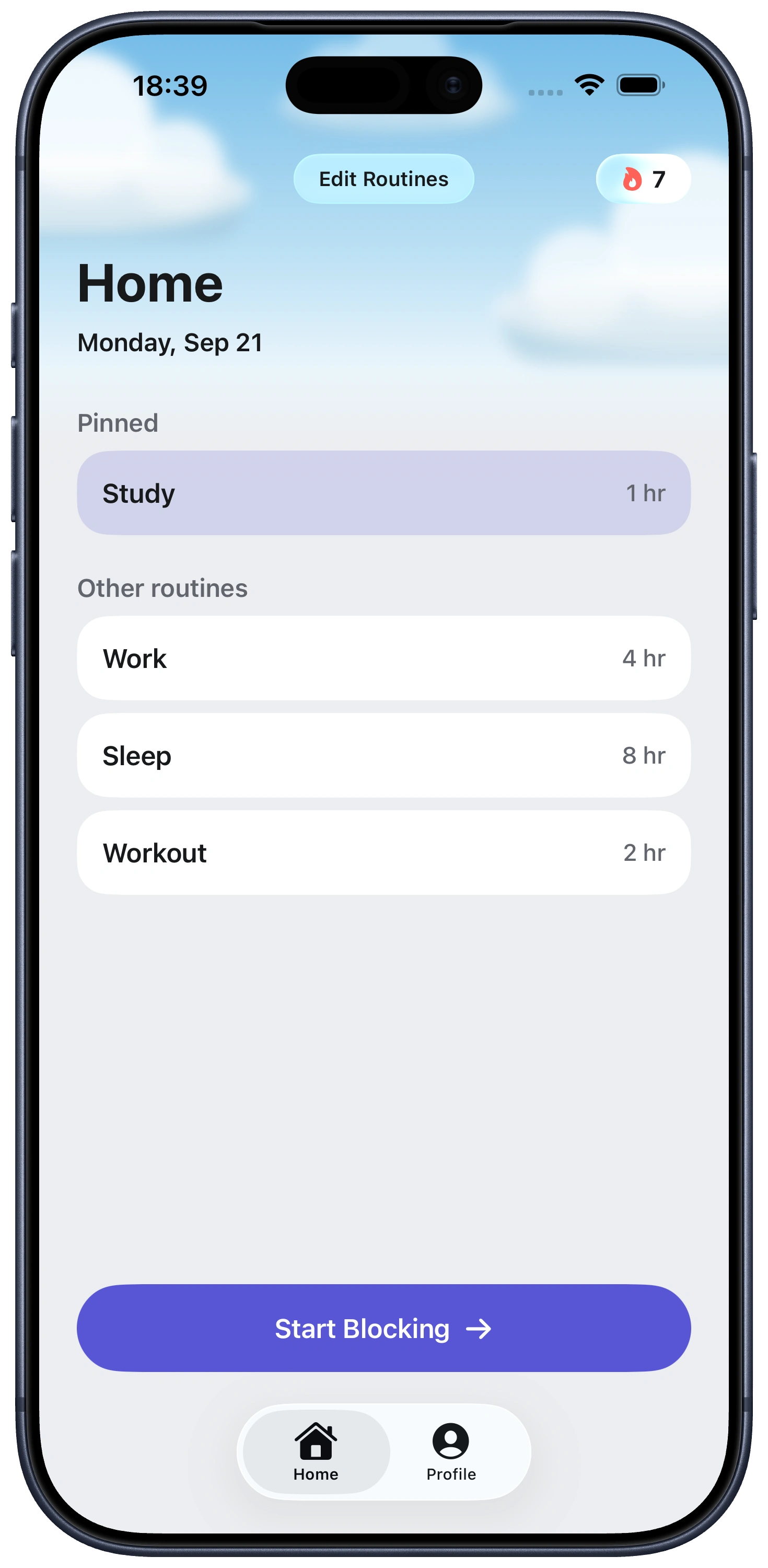
All-Day App Blocker for iPhone

Block it once.
Keep it blocked all day.

Fella makes selected iPhone apps unavailable by default, with one emergency 5-minute unlock for the moment that genuinely cannot wait.

An all-day blocker reverses the normal relationship with distracting apps. Instead of having unlimited access until you remember to start a focus session, selected apps begin and remain unavailable. Access becomes the exception.

Fella is built around that simple default. Choose the apps that repeatedly take more than they give, keep essential tools open, and use one 5-minute emergency unlock per day if a real need appears. The apps relock automatically.

This model is stricter than Screen Time and less flexible than a schedule-based blocker. That is an advantage only when all-day blocking matches your life.

Part 1

What “all-day app blocker” should mean

The block should not depend on starting a session. If activation is optional, “after one quick check” can postpone it indefinitely. Fella keeps the selected state in place throughout the day.

You should choose the blocked apps. An all-day boundary should not make the entire phone unusable. Phone, Messages, maps, camera, calendar, authentication, health, banking, and work tools can remain open.

Emergency access should have an ending. Fella's single 5-minute unlock provides a safety valve without turning into open-ended permission. Access closes automatically when the window ends.

The limits should be explicit. Fella blocks selected iPhone apps. It does not block websites, every device, individual tabs inside an app, or content categories within a feed.

Part 2

All-day blocking versus limits and schedules

ApproachChoose it whenMain tradeoff
Notifications offAlerts cause the distraction but intentional access is fine.Apps remain immediately available.
Screen Time App LimitsYou want a daily time budget.Access is allowed until the budget is used and limits can be extended.
Screen Time DowntimeYou want apps blocked during defined hours.Apps return outside the schedule.
FellaYou want selected apps closed all day by default.Only one 5-minute access window; no recurring schedule.

Apple's built-in tools are strong when timing matters. Go to Settings > Screen Time > App & Website Activity, then use App Limits for minutes or Downtime for schedules. Fella fits when flexibility has become the path around your intention.

Part 3

How to set up an all-day block with Fella

1. Identify the smallest effective list. Choose apps you open automatically or struggle to leave: social feeds, short video, games, news, shopping, dating, or email. Do not block an app simply because it has high screen time if that time is useful.

2. Audit essential functions. If Instagram contains client DMs, Telegram carries shift changes, or email is your on-call route, move urgent communication elsewhere before blocking.

3. Select the apps in Fella. Confirm the block and let it become the normal state. Unselected apps continue working normally.

4. Define an emergency-unlock rule. Decide in advance what qualifies: retrieve a ticket, answer an urgent message, or access a required detail. “I am bored” is not an emergency.

5. Let Fella close the window. After five minutes, blocked apps relock without relying on you to stop at the perfect moment.


Part 4

Who an all-day blocker is for

People who ignore or extend flexible limits. If the Screen Time prompt is now muscle memory, a time budget is no longer creating a meaningful boundary.

People whose genuine app needs are rare. The single unlock works when access is occasional—a message, link, posting task, or saved detail—not when the app is required every few hours.

People who want fewer decisions. All-day blocking removes the morning question of when to begin and the evening question of whether to continue.

It is not for everyone. Choose a scheduler if you want social apps every evening, a timer if you want daily minutes, parental controls if you manage a child's device, or a website/cross-device blocker if the same behavior happens in Safari and on a computer.

All-day iPhone app blocker FAQ

Yes. With Fella, you choose installed iPhone apps and keep them blocked throughout the day while unselected apps remain available.

Fella provides one emergency 5-minute unlock per day. When five minutes ends, the selected apps relock automatically.

No. Fella is designed for an all-day default, not recurring availability windows. Use Screen Time Downtime or a schedule-focused app blocker for predictable evening access.

No. You select which apps to block. Leave Phone, Messages, maps, health, authentication, work, and safety tools unselected.

No. Fella blocks selected apps on your iPhone. It is not a website, browser, computer, or cross-device blocker.