Focus Mode
Quiet isn't
the same as blocked.
Focus Mode manages notifications and hides home screen pages. It was never built to stop an app from opening, and research suggests silencing alone doesn't even reduce how often people check their phone.
Focus Mode is a real, useful feature. It's just solving a different problem than most people assume. It lets you allowlist notifications by app and by person, hide specific home screen pages while it's active, and even sync automatically across your Apple devices through iCloud.
What it doesn't do is stop you from opening an app. Confirmed directly in Apple's own community discussions: you cannot block an app from launching using Focus Mode alone. The app stays fully installed, and it's still reachable through the App Library or a quick Spotlight search, even if its icon is off the visible home screen.
What Focus Mode actually controls
Notification allowlisting. You choose which apps and people can notify you during a given Focus. Everything else queues quietly in Notification Center until you check it or the Focus ends.
Home screen visibility, not app removal. Custom Pages lets a Focus show only selected home screen pages, but apps left off those pages aren't deleted or restricted, just out of immediate view.
Automatic activation. Smart Activation can turn a Focus on based on time, location, or app usage patterns, learned on-device over time.
Cross-device sync. A Focus you create applies across every device signed into the same iCloud account, from iPhone to Mac to Apple Watch.
Why silencing notifications doesn't solve compulsive checking
The research on this is more surprising than the common advice suggests. A two-week experimental study found no significant difference in daily phone-checking frequency between a group with notifications disabled and a control group receiving them as usual. People who turned notifications off also didn't report feeling more in control of their phone use.
For some people, silencing can backfire. Separate research found that silencing a phone predicts more phone-checking behavior overall, and that people with high fear of missing out check their phone significantly more often specifically when it's on silent, likely because not being able to see what's arriving creates more uncertainty to resolve, not less.
There's also a real cost with no measured benefit. Both notification-focused interventions found increased anxiety about missing something, without a corresponding drop in actual checking behavior.
The DIY workarounds people build to make Focus actually block
Focus Filters. A handful of third-party apps support Focus Filters, letting a specific Focus trigger an action inside that app automatically. Opal, for example, can start a blocking session the moment a chosen Focus turns on, effectively borrowing Focus Mode's scheduling to run its own block.
Shortcuts automation. A common DIY approach uses the Shortcuts app to detect when a specific app opens during a chosen Focus and immediately redirects you back to the Home Screen. It works, but it depends on you building and maintaining the automation correctly rather than a dedicated setting doing it for you.
| Setup | What it controls | What still gets through |
|---|---|---|
| Focus Mode alone | Notifications, home screen visibility | Opening the app directly via search or App Library |
| Focus Mode + Screen Time | Notifications and scheduled app limits | The Ignore Limit override on App Limits |
| Focus Mode + Shortcuts automation | Redirects away from a blocked app during a Focus | Anything the automation wasn't built to catch |
| Focus Mode + Fella | Notifications, plus apps genuinely blocked by default | Nothing beyond one 5-minute daily unlock |
Where Fella fits
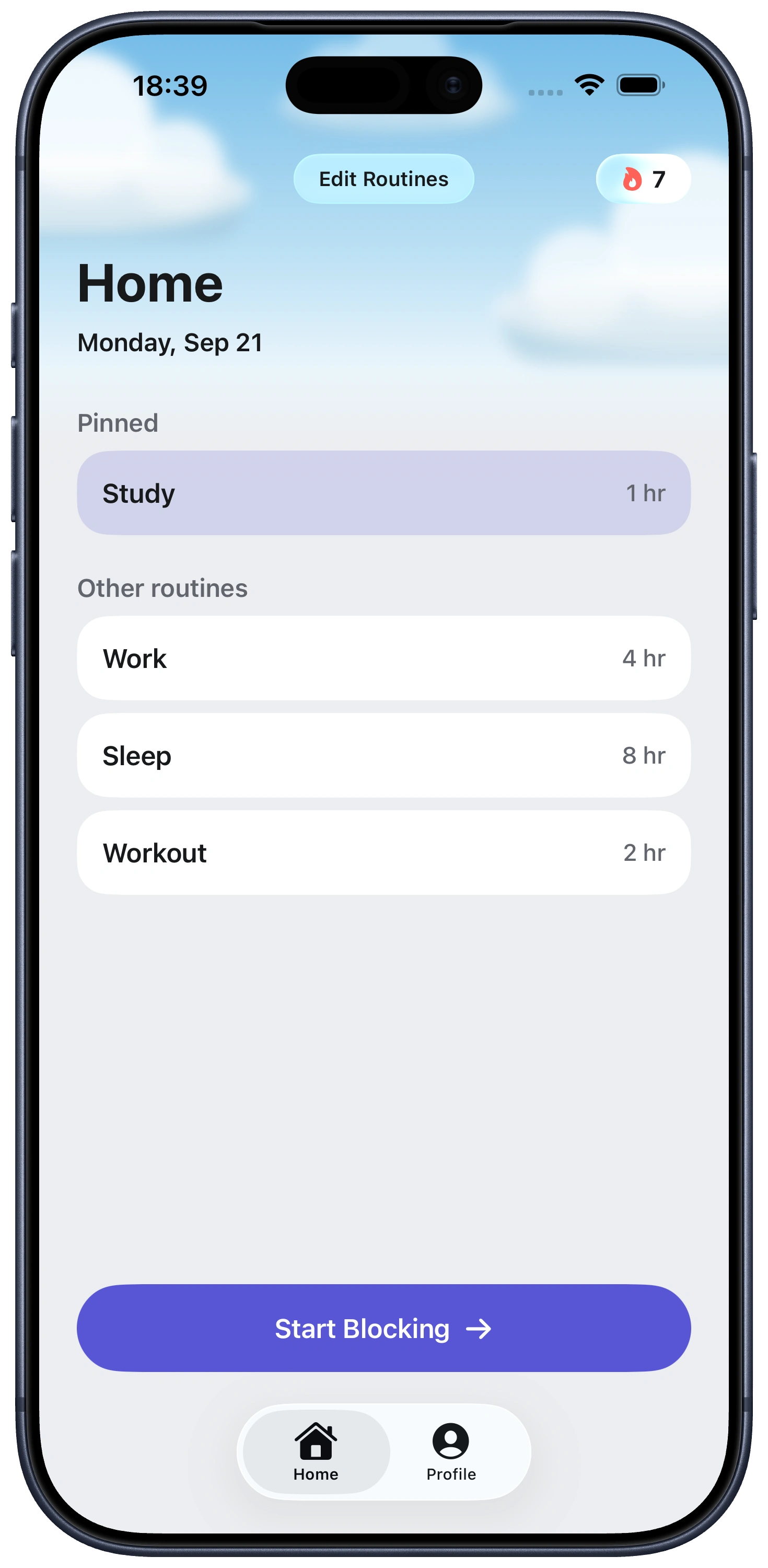
Fella isn't trying to replace Focus Mode. Keep using Focus for what it's good at, quieting notifications and simplifying your home screen, alongside Fella for the part it was never designed to do.
No Shortcuts automation to maintain. Chosen apps stay blocked by default every day, with one 5-minute emergency unlock, without relying on a fragile workaround you have to build and keep working yourself.
Focus Mode and app blocking FAQ
Not by default. Focus Mode manages notifications and can hide home screen pages, but the apps themselves stay fully installed and reachable through the App Library or Spotlight search unless a separate tool actually restricts access.
Focus Mode controls which notifications reach you and which home screen pages are visible. Screen Time is the feature that actually restricts app access through App Limits and Downtime, though its own Ignore Limit option makes that restriction easy to dismiss.
Research says largely no. A two-week study found no significant difference in phone-checking frequency between a group with notifications off and a control group, and people who disabled notifications didn't report more perceived control over their use either.
Yes, with an automation that detects a blocked app opening during a specific Focus and redirects you to the Home Screen. It's a functional workaround, but it depends on you maintaining the automation correctly rather than a built-in, dedicated block.
Focus Filters are a third-party integration some apps support, letting a specific Focus mode trigger an action in that app automatically, such as Opal starting a blocking session the moment a chosen Focus turns on.
Yes, they solve different problems. Focus Mode is useful for reducing notification noise and simplifying your home screen, while an app blocker like Fella handles the part Focus Mode was never built to do: actually preventing an app from opening.
Studies have found that silencing notifications doesn't reliably reduce checking frequency, and for people with high fear of missing out, being unable to see incoming notifications can actually increase how often they check their phone.
See also block apps at certain times, the strict app blocker for iPhone guide, Fella vs Screen Time, or how Fella works.