Screen Time keeps
getting around you.

Limits that quietly stop working, App Limits someone taps through, usage numbers that don't add up. Here's how to actually fix each one, not just read about it.

Matthew KFounder, Fella
Guide

Screen Time & App Limits guides

Screen Time Limits Not Working? 7 Fixes for iPhone (iOS 26)Screen Time limits not working on iPhone? Use a 1-minute test, then check App Limits, Always Allowed, Share Across Devices and Family Sharing before resetting. How to Remove or Turn Off Ignore Limit on Screen TimeLearn how to remove, turn off, or disable Ignore Limit in Apple Screen Time using a passcode and Block at End of Limit—and what iOS does not permit. App Limits Not Working on iPhone? Check These 6 ThingsIf iPhone App Limits aren’t working, check the selected apps, shared allowance, custom days, Always Allowed, App & Website Activity and Share Across Devices before resetting Screen Time. How to Check Screen Time on iPhone: Daily, Weekly & HistoryOpen Settings → Screen Time → See All App & Website Activity to view daily or weekly usage, app time, pickups, notifications and Screen Time history. iPhone Screen Time Inaccurate? Why It Looks Wrong + FixesDoes iPhone Screen Time look inaccurate? Check Share Across Devices, the selected device, app totals and activity history before assuming the counter is broken. How to Turn Off Screen Time on iPhone (or Just One Limit)Turn off Screen Time from Settings → Screen Time → App & Website Activity, or disable only App Limits or Downtime if you want to keep the rest of Screen Time. How to Stop Ignoring Screen Time Limits on iPhoneKeep overriding Screen Time limits even when they work? Learn why Ignore Limit becomes automatic and how to make distracting apps harder to bypass. Forgot Your Screen Time Passcode? How to Reset ItReset a forgotten Screen Time passcode on your iPhone or a child's device, use the correct Apple Account, and fix missing or failed reset options. How to Set App Limits on iPhone for One App or CategorySet a daily Screen Time limit for one iPhone app, several apps or a whole category. Choose custom days, shared allowances and Block at End of Limit. How to Use Downtime on iPhone to Block Apps on a ScheduleSet iPhone Downtime for every day or custom days, choose Always Allowed apps, and turn on Block at Downtime for stricter scheduled blocking.
7-day free trial

Fella, up close.

  • Built with Apple’s Screen Time controls.
  • One 5-minute emergency unlock per session.
  • Apps stay blocked by default.
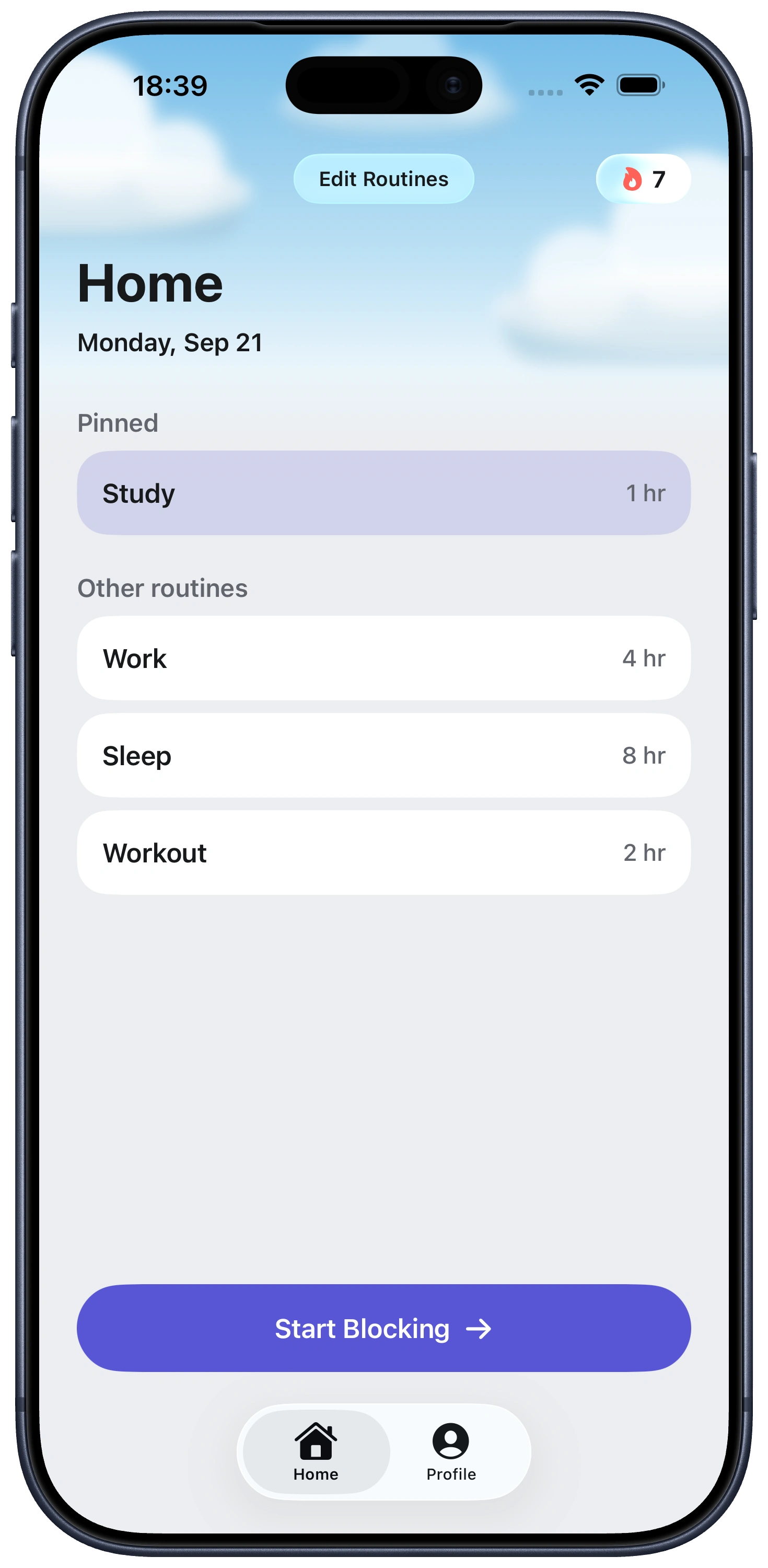
Fella Home screen showing focus routines and session lengths Fella Home screen showing focus routines and session lengths

Own Your Attention
Starting Right Now