
An app blocker without
an easy pause button.
When you keep turning off your own limit, another reminder is not the answer. Choose the apps that distract you and keep them blocked by default.

Trusted by 500+ people
When you keep turning off your own limit, another reminder is not the answer. Choose the apps that distract you and keep them blocked by default.
Trusted by 500+ people

Some free app blockers offer a pause button for flexible focus sessions. It is less useful when opening the settings, extending a limit, or tapping pause has become part of the same habit you were trying to change.
The question is not whether you should ever access a blocked app. It is whether access should be an unlimited decision you make at the exact moment you feel like scrolling. A no-pause approach makes the ordinary state clear: the selected app stays unavailable.
A boundary has to work when motivation is low. If the next step after opening a blocked app is a simple pause, snooze, or extension, the blocker still asks you to make the hard choice in the moment.
Look at the exception, not just the block. Before choosing a blocker, ask what happens when you need a message, login code, travel detail, or account setting. A useful rule should have a practical answer without quietly becoming open-ended access. See how different app blockers handle that exact exception for the fuller comparison of pause, session-break, and limited-unlock mechanics.
| Approach | Best for | The trade-off |
|---|---|---|
| Pauseable focus session | A planned period of work, study, or rest. | You can usually end or change it in the moment. |
| Screen Time App Limit | A daily allowance or an awareness cue. | It may still ask you to respond to a limit once it appears. |
| Scheduled restriction | Hours when you want apps unavailable. | The app becomes available outside the schedule. |
| Fella's default block | Apps that cause unplanned checking throughout the day. | It is deliberately less flexible than a schedule or timer. |
If you need to block apps only during a routine time window, read how to block apps at certain times on iPhone. Fella fits the different problem of apps that are distracting at unpredictable moments.
Select the apps that keep pulling you off course. You might choose social media, short video, news, shopping, games, or another app you do not want freely available. Unselected apps can remain open for normal use.
The selected apps stay blocked by default. There is no daily in-app toggle to turn the rule off and no open-ended pause to extend when you are already tempted to use the app.
Fella still leaves room for real needs. Each blocking session includes one five-minute emergency unlock. Use it for the task that matters, then let selected apps lock again automatically when the window ends.
That trade-off is intentional. Fella is not a schedule planner, parental-control system, browser blocker, or impossible-to-bypass device lock. It is a focused boundary for selected apps on your iPhone.
It fits people who have already noticed the loophole. If you set a limit, dismiss it, and keep using the same app, a softer reminder is unlikely to change the access pattern on its own.
It works best for a small, specific app list. Start with the apps that repeatedly derail your attention instead of trying to restrict every part of your phone. The goal is a usable phone with fewer automatic detours.
It may not fit if you need regular planned access. Choose a schedule-based blocker if an app needs to be available at the same time every day. Choose an accountability app blocker if another person needs to control the override. For a broader decision guide, see strict app blockers for iPhone.
Everything you need to stay focused, right from Home.
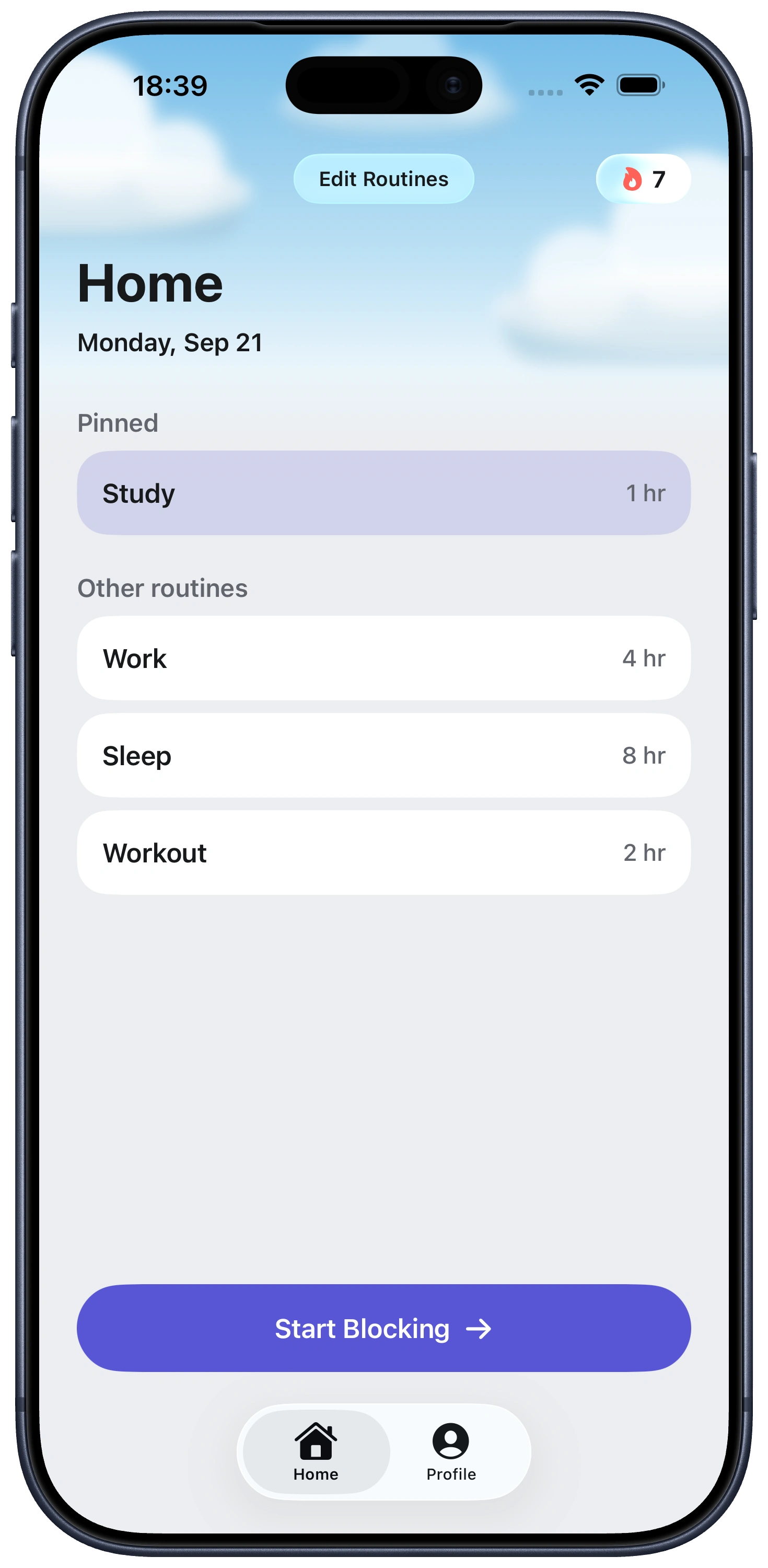
Fella has no daily in-app pause or toggle for selected blocked apps. Each blocking session has one five-minute emergency unlock for a genuine need, then the selected apps lock again automatically.
No. An iPhone owner can still remove a third-party app or change device-level settings. A no-pause design removes the convenient in-the-moment override; it does not create an impossible-to-bypass lock.
A pause can be flexible or repeatable. Fella's emergency unlock is one fixed five-minute access window per blocking session, and selected apps lock again when it ends.
It can fit people who repeatedly pause, extend, or ignore a block on a small number of distracting apps but still need a clear exception for a practical task.
No. Fella is for selected distracting iPhone apps. Apps you do not choose can remain available.

