
Keep the chats.
Close the channel loop.
Block Telegram on your iPhone without deleting conversations, leaving every group, or losing your account.

Trusted by 500+ people
Block Telegram on your iPhone without deleting conversations, leaving every group, or losing your account.
Trusted by 500+ people
Everything you need to stay focused, right from Home.
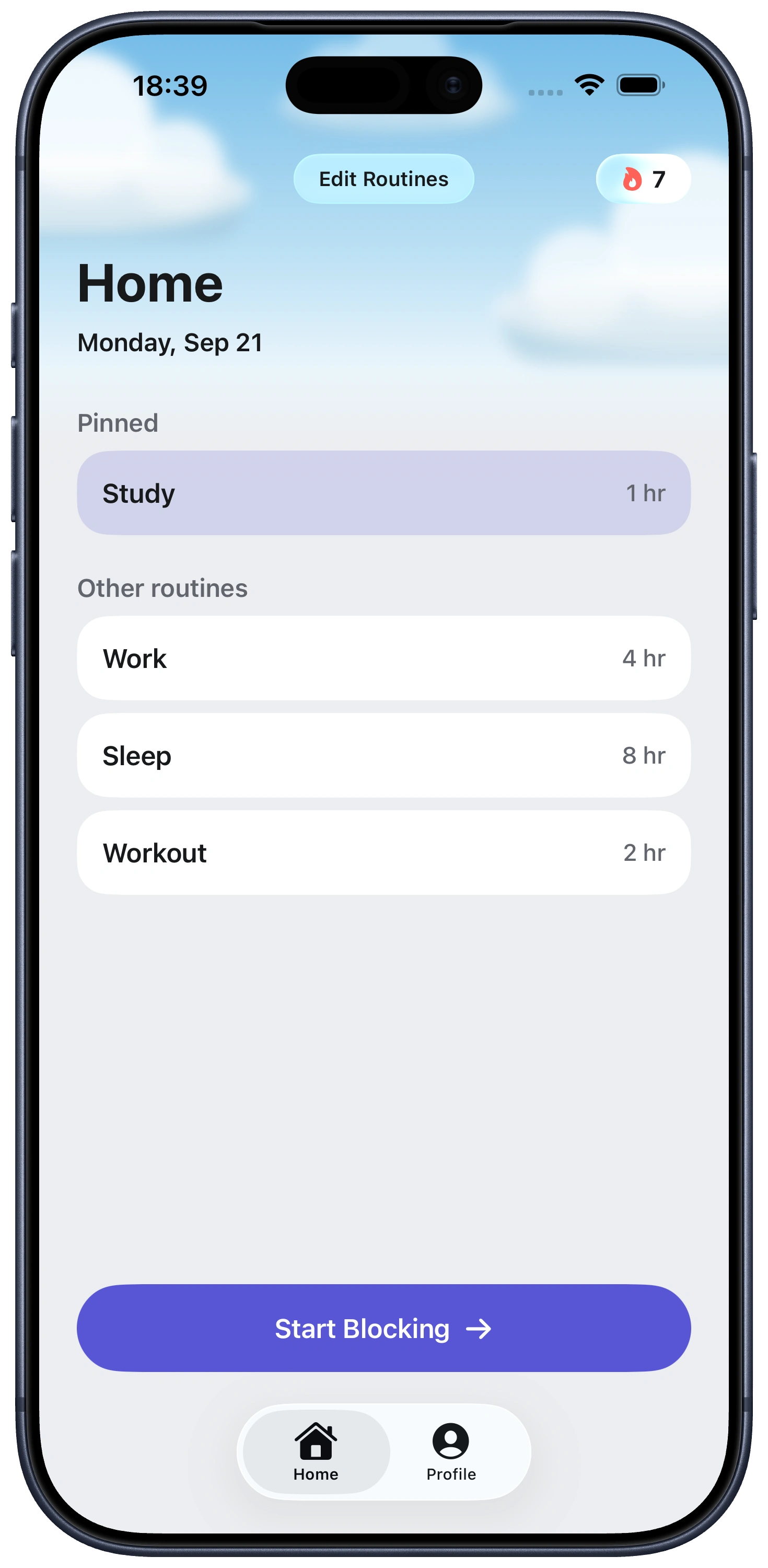
The short answer: if Telegram is useful but too easy to check, choose the smallest boundary that solves the problem. Mute noisy groups for fewer interruptions, use Screen Time for scheduled access, or use Fella to make Telegram unavailable by default all day.
Telegram can be a direct messenger, a large-group platform, a channel reader, a file-sharing tool, and a bot interface at the same time. That mixture is why “I need my messages” can quietly become an hour of channel updates. Blocking access is different from deleting your account: your chats and memberships remain where they are.
| Method | Best for | Limitation |
|---|---|---|
| Mute or leave channels | Keeping direct chats open while reducing group and channel noise. | The app remains available, including every feed you kept. |
| Turn off notifications | Removing badges, sounds, banners, and lock-screen prompts. | Does not stop habitual opening. |
| Screen Time | Daily minutes or a recurring schedule. | Self-managed limits can be changed or extended. |
| Fella | Strict all-day blocking with rare access. | Blocks the entire Telegram app, not selected chats. |
If the problem is one huge group, do not block all of Telegram first. Mute it, archive it, or leave it. If you open Telegram even with every alert off, an access boundary makes more sense.
For a daily cap: go to Settings > Screen Time > App & Website Activity > App Limits > Add Limit. Open the relevant category, choose Telegram, tap Next, and set the allowance. Use Customize Days if weekends should differ. If you are still choosing a tool, see our free iPhone app blockers.
For certain hours: use Settings > Screen Time > Downtime. Choose a schedule and check Always Allowed so Phone, Messages, maps, authentication, and other essential apps remain reachable.
Apple's tools are the better choice when you want Telegram at particular times. They are less useful when you repeatedly extend your own limits or disable the schedule.
1. Select Telegram in Fella. Add the iPhone app to your blocked list. Other communication apps can remain open.
2. Treat blocked as the normal state. There is no schedule to start and no bank of minutes to spend. Telegram stays unavailable throughout the day.
3. Use one 5-minute emergency unlock per session only when needed. Check a specific chat, retrieve a file, or send the reply you already planned. Five minutes is short enough to discourage channel wandering.
4. Let Fella lock it again. Access ends automatically, so you do not need to win a second decision after opening the app.
Fella is not a message filter and does not decide which chats matter. It blocks the whole selected iPhone app. It also does not sign you out of Telegram elsewhere.
Tell priority contacts how to reach you. If family, teammates, or clients currently use Telegram for urgent matters, give them a phone, text, or email route that will remain available.
Keep one essential channel outside Telegram. A blocked app should never be the only place you receive shift changes, travel details, two-factor codes, or emergency information.
Use desktop access intentionally. Because Telegram syncs across devices, you can preserve planned computer access while removing the pocket-sized checking loop. If desktop Telegram becomes the new distraction, you will need a separate computer-level boundary.
Choose a lighter setup when you need continuous Telegram availability for work or caregiving. Fella is strongest when genuine Telegram needs are occasional and the checking behavior is frequent.
Telegram ships no first-party screen time dashboard, break reminder, or daily cap. The app's own settings cover notifications, chat folders, and data usage, not how long or how often you open it.
That leaves Apple's Screen Time as the only native lever, and it comes with the same self-set Ignore Limit bypass every App Limit has, so anyone who's already found that button once will find it again.
Fella has no equivalent bypass beyond the one 5-minute emergency unlock per session. Without an in-app nudge to fall back on, that's the part doing the actual work.
Use Screen Time App Limits for a daily allowance or Downtime for a schedule. Use Fella when you want the Telegram iPhone app blocked all day with one 5-minute emergency unlock per session.
No. An app block controls access on your iPhone; it does not delete your Telegram account, chats, groups, channels, or files.
Fella and Screen Time block the whole Telegram app. To keep private messages available, mute, archive, or leave distracting channels and groups inside Telegram instead.
No. Fella blocks the selected app on your iPhone, not Telegram sessions on a computer, browser, tablet, or other device.
Do not rely on a blocked app for urgent communication. Give important contacts an available route such as Phone, Messages, or email; use Fella's one 5-minute emergency unlock per session only for occasional checks.
No. Telegram ships no first-party dashboard, break reminder, or daily cap. Apple's Screen Time is the only native option, with the same self-set Ignore Limit bypass every App Limit has.
Bot messages still arrive and wait in the app, the same as any other message. Blocking Telegram simply stops you from opening the app to see them until your one 5-minute emergency unlock per session or until you turn the block off.

