屏蔽应用。
免快捷指令设置。

Fella 屏蔽分心应用,无需自建快捷指令自动化。选好应用、设定时段或排程,其余交给屏幕使用时间。

Matthew KFella 创始人
指南

Does Fella require Apple Shortcuts?

No. Fella's blocking flow does not depend on Apple Shortcuts. You do not need to create a personal automation, choose a trigger, assemble actions, or maintain a separate workflow in the Shortcuts app.

Everything needed for the block lives in Fella and Apple's 屏幕使用时间 system. Fella requests 屏幕使用时间 permission, opens Apple's app picker, stores your blocking configuration, and uses the system's Managed Settings and Device Activity frameworks to apply it.

Shortcuts remains available for everything else. Fella does not disable or replace Apple's automation app. Any unrelated Shortcuts you already use can remain separate from your app-blocking setup.

Why Shortcuts-based blocking can feel cumbersome

A custom automation asks you to design the workflow. You may need to decide which trigger starts it, which actions run, what happens at the end, and how to edit the sequence later. That flexibility is valuable when you want a custom system; it is overhead when you only want selected apps blocked.

The setup is split across interfaces. A blocking method built around Shortcuts can send you between an app, the Shortcuts editor, automation settings, and system permissions. Fella keeps app selection, session timing, routines, and emergency access inside one dedicated product flow.

Custom does not mean bad or universally unreliable. Shortcuts is a capable automation platform, and some people prefer building their own workflows. Fella is for the person who would rather configure the outcome than construct the automation.

Fella uses Apple's 屏幕使用时间 frameworks directly

Family Controls handles permission and app selection. Fella asks for individual 屏幕使用时间 authorization and presents Apple's Family Activity picker so you can choose the apps or categories you want to restrict.

Managed Settings applies the system shield. During an active session, Fella gives iOS the selected-app rule. When you try to open one of those apps, the iPhone shows Fella's shield rather than relying on a Shortcut to launch or close something.

Device Activity handles timing. Fella registers manual and recurring intervals with Apple's Device Activity system. Its monitor extension reconciles the active blocking sources when those intervals start and end.

StepWhat you do
1Download and open Fella
2Grant Apple's 屏幕使用时间 authorization
3Choose distracting apps or categories in the system picker
4Select a duration or create a recurring routine
5Start blocking—without opening the Shortcuts app

From install to blocked apps

There is no hidden automation-building step. The current iOS project contains no App Intent, SiriKit, or Shortcuts action in the blocking path. The primary setup is app selection plus timing, all presented inside Fella.

You still approve Apple's required permission. A no-Shortcuts setup is not permissionless. iOS must authorize Family Controls before Fella can shield selected apps. See how Fella works from selection through automatic relocking.

Manual sessions when you need a block now

Start the session inside Fella. Choose the duration and begin. Fella stores the session dates, registers the Device Activity interval, and applies the selected-app shield without calling a Shortcut.

Apple sets the minimum interval. Manual sessions start at 15 minutes because Device Activity rejects shorter monitoring intervals. Fella supports longer sessions for a work block, evening, full day, or weekend.

The block ends with the session. Fella reconciles its active blocking sources when the interval finishes, so an overlapping routine can remain active even when the manual session ends.

Recurring schedules, configured in Fella

Routines repeat on the days and times you choose. Fella saves the routine and registers its schedule with Device Activity. Apple's system then runs Fella's monitor extension when the interval starts and ends.

No personal automation is required. You do not need a time-of-day Shortcut, separate start and stop actions, or an automation for every weekday. The routine itself contains the selected apps and recurring schedule.

Use the detailed guide for timing questions. See how to block apps at certain times on iPhone, including overnight and recurring schedules.

Emergency access without another automation

Every active session gets one five-minute 紧急解锁. Use it for a message, code, travel detail, or another task that cannot wait. Fella removes the shield temporarily and starts the fixed five-minute window.

The apps are blocked again automatically. Fella registers the emergency interval with Device Activity, and the monitor extension reapplies the current rule when the window ends. The main app also reconciles expired unlock state when it runs.

There is no Shortcut to trigger or reset. The allowance belongs to the current blocking session. It does not accumulate, and a second unlock is not available within that session. Read the exact 紧急解锁 rules.

DecisionShortcuts-based approachFella's 屏幕使用时间 approach
Initial setupBuild or import an automation and configure its actionsChoose apps and timing inside Fella
Trigger modelDepends on the automation you createManual session or recurring Device Activity routine
Blocking mechanismDepends on the app and Shortcut actions involvedManaged Settings applies Apple's system shield
Schedule editingEdit the personal automationEdit the routine inside Fella
Emergency accessDepends on the custom workflowOne fixed five-minute unlock per active session
FlexibilityBroad, general-purpose automationFocused selected-app blocking
Best fitPeople who want to build a custom workflowPeople who want the blocker to own the workflow

Shortcuts automation versus native 屏幕使用时间 blocking

The difference is ownership of the setup. Shortcuts gives you building blocks. Fella gives you a purpose-built iPhone app blocker with selection, timing, shields, and controlled emergency access already connected.

Both approaches can be legitimate. A tailored Shortcut may be ideal if you enjoy automation and need unusual triggers. Fella is the cleaner choice when you want to choose apps, set the time, and move on.

For people who want the result, not an automation project

Fella keeps the job narrow. It blocks selected distracting apps in manual or scheduled sessions, provides one controlled emergency window, and automatically restores the block. It is not a replacement for every feature in Shortcuts or 屏幕使用时间.

Your useful tools stay yours. Shortcuts can continue running unrelated automations, and apps you do not select remain available. If Apple's built-in limits have not matched the behavior you want, compare Fella with the broader 屏幕使用时间 approach.

7 天免费试用

Fella 实际运作

  • 基于苹果的屏幕使用时间和家人共享,不是变通方案
  • 每个会话仅有一次 5 分钟的紧急解锁,没有绕过开关
  • 锁定默认保持开启,你永远不需要再手动打开
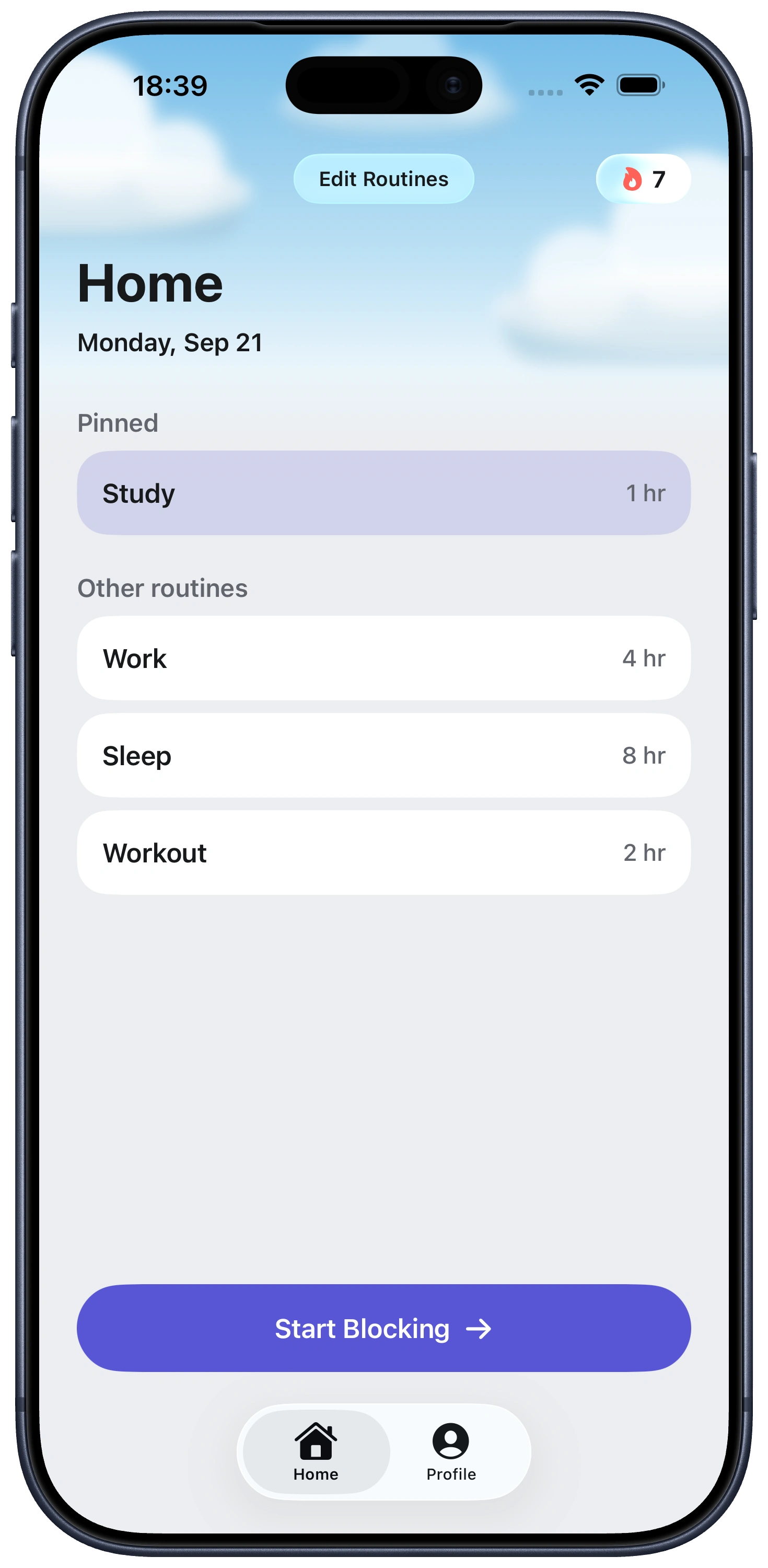
显示专注日程和会话时长的 Fella 主屏幕

App blocking without Shortcuts FAQ

No. Fella's blocking flow has no Apple Shortcuts, App Intents, or Siri automation dependency. Selection, sessions, schedules, and 紧急解锁 are handled inside Fella with Apple's 屏幕使用时间 frameworks.

Fella requests 屏幕使用时间 authorization, lets you choose apps with Apple's picker, applies shields with Managed Settings, and schedules intervals with Device Activity.

No. You configure manual sessions and recurring routines inside Fella. You do not need to create triggers or actions in the Shortcuts app.

Yes. Fella routines register recurring intervals with Apple's Device Activity system. Choose the days, times, and selected apps inside Fella.

Yes. Start a manual session inside Fella and choose how long it runs. Apple sets a 15-minute minimum for the 屏幕使用时间 monitoring interval.

No. Each active session includes one five-minute 紧急解锁. Fella temporarily removes the shield and automatically reapplies it when the five minutes end.

Not universally. Shortcuts is a flexible automation tool and may suit people who enjoy building custom workflows. Fella is for people who prefer a dedicated blocking interface.

Yes. Fella does not replace or disable the Shortcuts app. Existing automations can remain separate from Fella's 屏幕使用时间 blocking.

No. Fella uses Apple's 屏幕使用时间 frameworks for a focused job: selected-app blocking through manual or scheduled sessions with one controlled emergency unlock.

掌控你的注意力
从现在开始