The limit was real.
The button that clears it wasn’t.

App Limits count minutes accurately. The problem shows up the moment the limit is reached: one tap on Ignore Limit clears the whole day's restriction, and that tap takes less thought than deciding to check the app in the first place.

Trusted by 500+ people

Matthew KFounder, FellaGuide

App Limits aren't broken. They do exactly what they're designed to do: track time and warn you when a threshold is crossed. The design gap is what happens next. The warning screen offers a one-tap way past itself, and for most people that tap requires less willpower than the original decision to open the app did.

How App Limits actually work

Set in Settings > Screen Time > App Limits, a limit tracks usage for a chosen app or category and allows free, unrestricted use until that total is reached. There is no restriction during that window at all, just a running count.

Once the limit hits, a screen appears with a dismiss option, either Ignore Limit For Today or Remind Me Later depending on the iOS version. Tapping it clears the block for the rest of the day. There's no second confirmation, no friction beyond the single tap.

Why a counted limit and a real block are different tools

A limit is a measurement with a warning attached. It's genuinely useful for building awareness of how much time an app is actually taking. What it isn't is an enforcement mechanism, because the enforcement step hands the decision straight back to you at the exact moment you're least equipped to make it well.

A block removes that decision point entirely. There's no daily allowance to use up and no button that clears the whole day at once.

Tool Before the limit At the limit
App Limits Unrestricted use, minutes counted Dismissible screen, one tap clears it for the day
Fella Selected apps blocked for the whole session One 5-minute emergency unlock, then locked again

Where Fella fits

Select the apps that keep beating a daily limit, then start a session manually or schedule a routine. There's no minute count to track and nothing to dismiss; the apps stay locked for the session, with one 5-minute emergency unlock for a genuine need.

Fella, up close.

  • Built with Apple’s Screen Time controls.
  • One 5-minute emergency unlock per session.
  • Apps stay blocked by default.

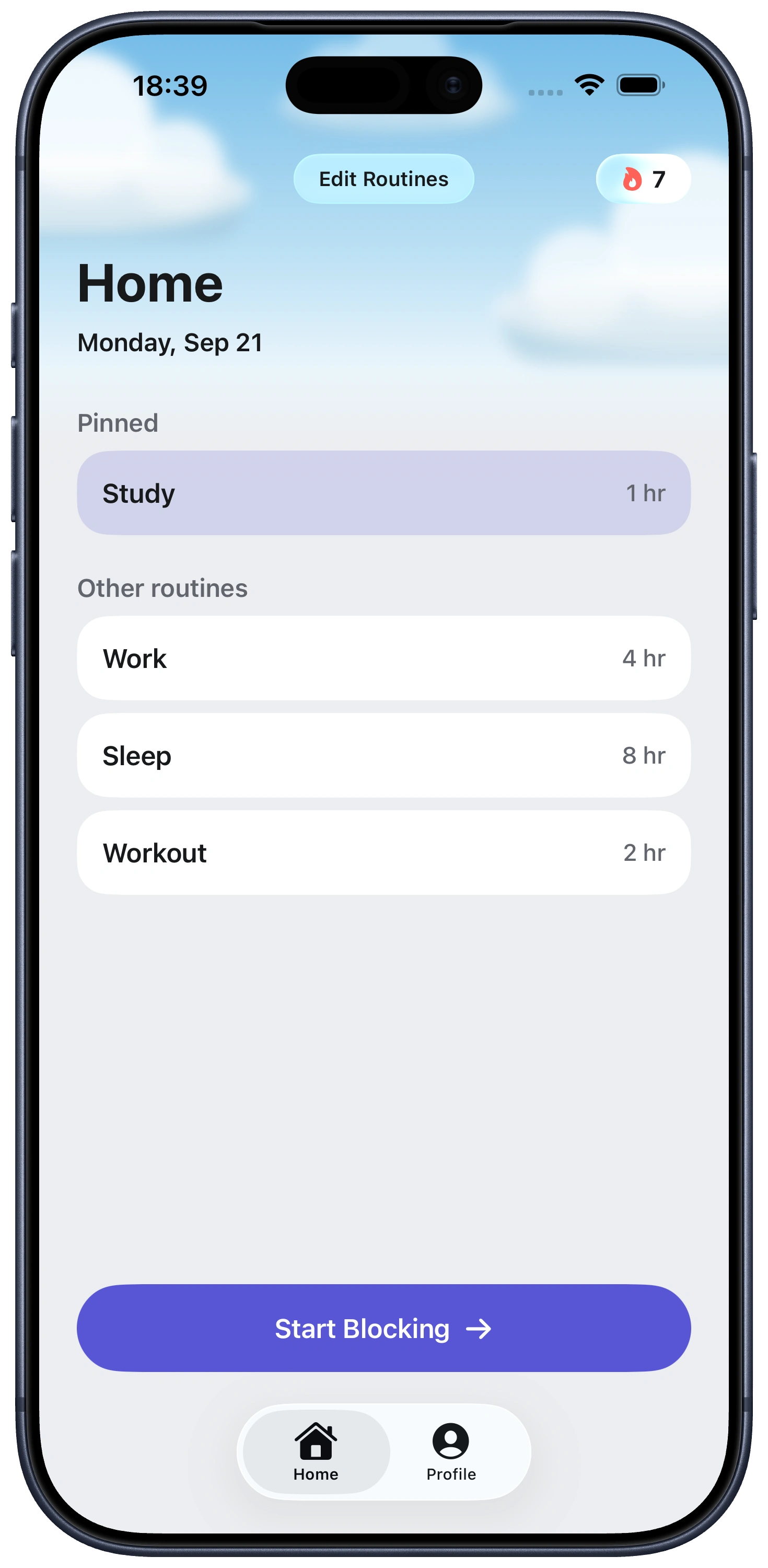
Everything you need to stay focused, right from Home.

Fella Home screen showing focus routines and session lengths

App blocker vs App Limits: FAQ

Own Your Attention
Starting Right Now

Trusted by 500+ people