
Make starting easier.
Make escaping harder.
Fella removes the iPhone apps you use to avoid the next task, while keeping the tools and communication you actually need available.

Trusted by 500+ people
Fella removes the iPhone apps you use to avoid the next task, while keeping the tools and communication you actually need available.
Trusted by 500+ people

An app blocker does not create motivation. It removes the instant alternative that appears when a task feels uncertain, boring, difficult, or uncomfortable. That smaller environment can be enough to begin.
Procrastination is not always entertainment. People avoid important work by checking email, rearranging notes, reading industry news, shopping for tools, or researching a better method. The relevant blocked list is personal: it contains the apps that help you feel busy while the real task remains untouched.
Fella is built for a strict default, not a motivational dashboard. Selected apps stay blocked during each manual or routine-scheduled session with one 5-minute emergency unlock per session.
Track the first escape, not only the longest session. When you hesitate before work, which icon do you tap? Instagram may consume twenty minutes, but email may be the first move that breaks the task.
Separate tools from escape routes. Keep the calendar, files, camera, calculator, authentication, maps, Phone, and Messages if they support your day. Block apps based on your behavior, not a generic “bad apps” list.
Look for respectable avoidance. News, LinkedIn, productivity videos, finance apps, and inboxes can all postpone a difficult next action while still feeling responsible.
Start with three to five obvious apps. A huge list is more likely to interrupt real life and tempt an emergency unlock for the wrong reason.
| Pattern | Better approach | Why |
|---|---|---|
| Alerts interrupt work | Turn off notifications or use Focus. | You still retain intentional access. |
| You need apps after work | Screen Time Downtime or a scheduler. | The boundary can follow work hours. |
| You ignore daily limits | Fella's all-day block. | There is no open-ended override. |
| You avoid one unclear project | Define the next physical action. | A blocker cannot make vague work executable. |
Screen Time lives under Settings > Screen Time > App & Website Activity. App Limits provide daily minutes; Downtime creates a schedule. Fella is intentionally narrower and stricter when those flexible limits become part of the procrastination ritual. To compare tools before setting this up, see our free tools for blocking distracting apps.
1. Select the escape apps. Choose the feeds, video apps, games, stores, news, or inboxes you open instead of beginning.
2. Protect practical access. Leave tools and urgent communication unblocked. If one app mixes work with distraction, move its necessary function elsewhere before blocking it.
3. Block the apps for the session. Fella uses blocking sessions, started manually or by a scheduled routine. This prevents “I will start the block after one quick check.”
4. Reserve the emergency unlock. Each blocking session includes one 5-minute window. Use it for a real task, then let Fella relock automatically.
Fella works best when its fixed access rule fits the whole session. Use a routine when you want sessions to start on a predictable schedule.
Write the next visible action. “Work on proposal” is vague; “open the draft and rewrite the first paragraph” is startable. Remove decisions before they become an excuse.
Lower the opening commitment. Promise five minutes, one paragraph, one problem, or one cleaned surface. Starting is the target; continuing is optional.
Put the phone out of reach. Blocking selected apps helps, but the physical device still offers browsers, settings, and other substitutions. Distance removes additional choices.
Review the cause, not your character. Repeated avoidance can signal unclear priorities, exhaustion, fear of evaluation, an overloaded plan, or a health concern. An app blocker is an environmental tool, not a diagnosis or treatment.
Psychologist Tim Pychyl's research reframes procrastination as an emotion-regulation problem, not a time-management one. Avoiding a task is a way of managing the anxiety, boredom, resentment, or uncertainty that task creates right now, a short-term mood repair that leaves the same task, the same feeling, and less time waiting on the other side.
That reframing changes what actually helps. One well-supported technique is the implementation intention, a specific if-then plan like "if it's 9am, I open the draft and write one paragraph." A meta-analysis by Gollwitzer and Sheeran covering 94 studies found a medium-to-large effect on follow-through compared to holding the goal alone, because the plan shifts the decision to a cue instead of leaving it to willpower in the moment.
Blocking and implementation intentions solve different halves of the same problem. A block removes where the avoidance goes; an if-then plan gives the moment of starting a fixed, low-effort shape instead of an open decision you have to make while already avoiding it.
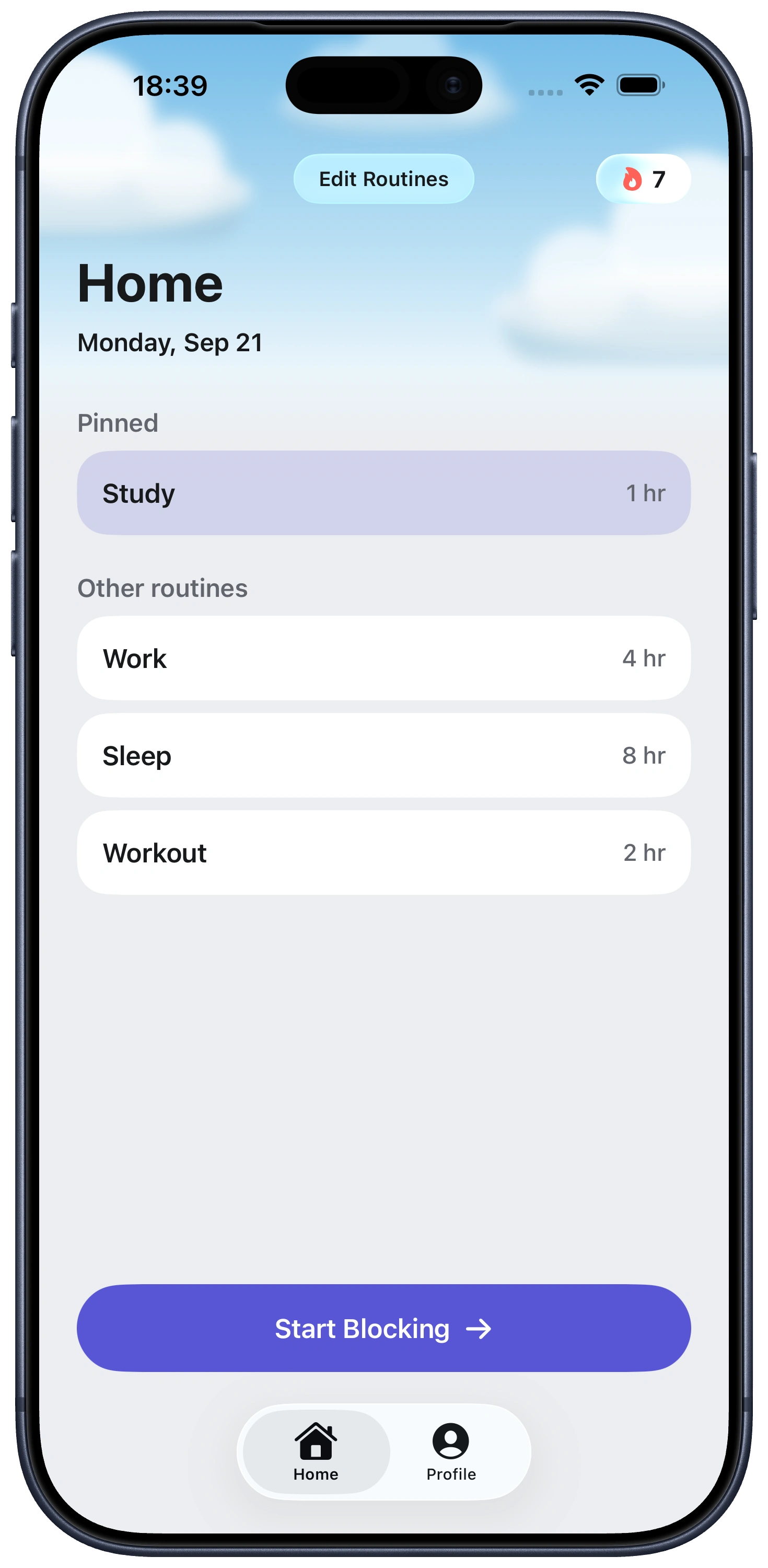
Everything you need to stay focused, right from Home.
It can remove an easy escape route and create space to begin, but it cannot define the task, fix an unrealistic workload, or treat an underlying health condition.
Block the smallest set you actually escape into—often social feeds, short video, news, games, shopping, or email—while leaving task tools, communication, maps, authentication, and safety apps available.
You select iPhone apps and Fella keeps them blocked during each manual or routine-scheduled session. One 5-minute emergency unlock is available in each blocking session, after which the apps relock automatically.
No. Fella is an all-day blocker. Use Screen Time Downtime or a schedule-focused blocker if your apps should be available at predictable times.
Fella blocks selected iPhone apps, not websites or other devices. You will need separate browser or computer boundaries and a clearer next-action plan.
Research by Tim Pychyl frames it as an emotion-regulation problem, short-term mood repair that avoids a task's discomfort rather than a scheduling failure.
A specific if-then plan for when and how you'll act. A large meta-analysis found it meaningfully improves follow-through compared to just setting a goal.
No. It removes the escape route, but pairing it with a specific if-then plan addresses the moment of starting too.

