App Blocker for Gamers

Keep gaming a choice.
Not a daily obligation.

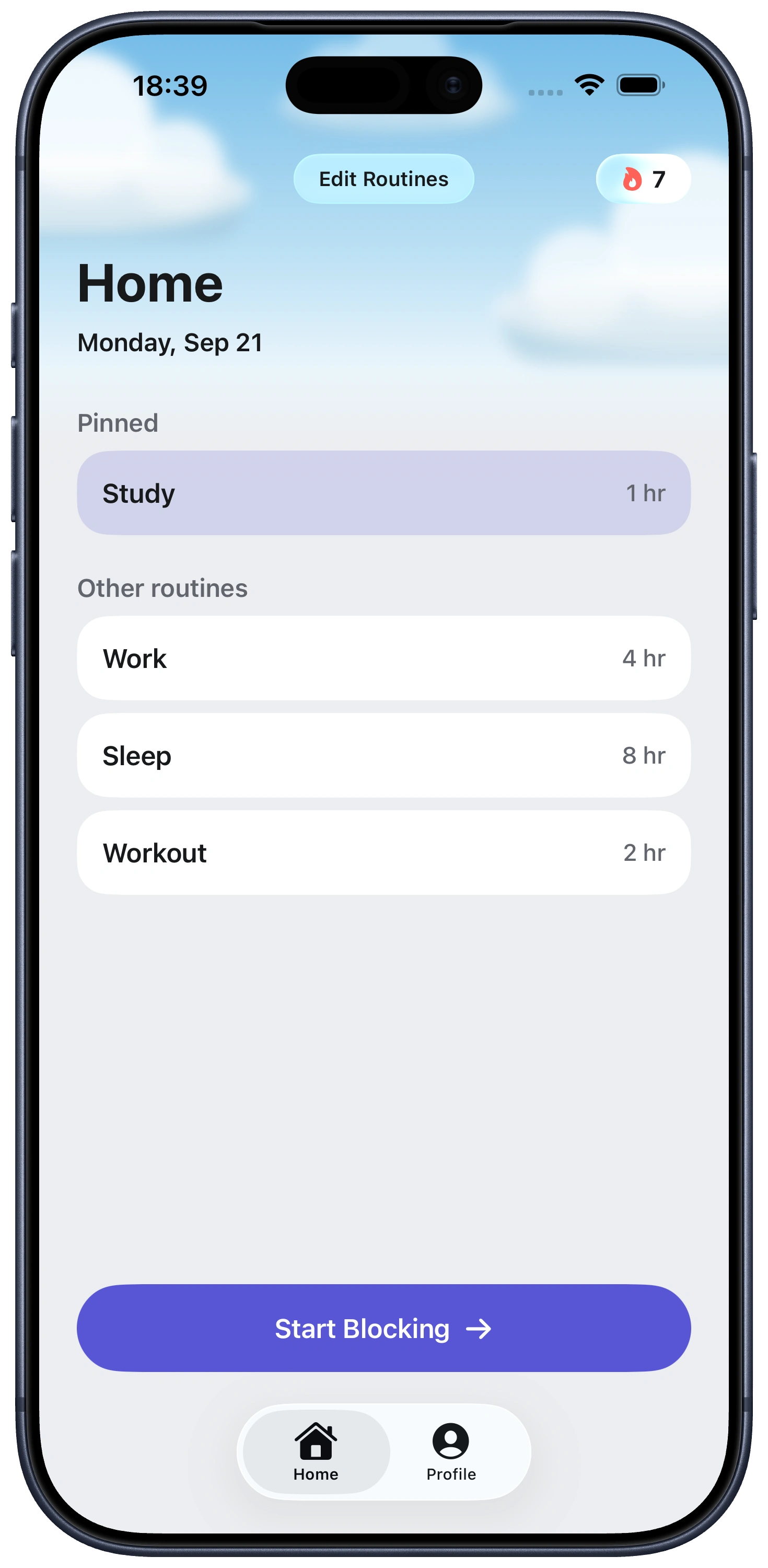
Fella blocks selected mobile games on iPhone all day, with one emergency 5-minute unlock. Stop opening a game for rewards, timers, and “one quick match” whenever your phone is nearby.

Enjoying games is not the same as wanting a mobile game available every minute. A planned console session with friends has a beginning and an end. A game on your iPhone follows you to bed, work, class, the sofa, and every quiet thirty seconds in between.

Many mobile games are organized around return cues, not just play. Daily login rewards, energy refills, timed chests, limited events, streaks, battle passes, and push prompts turn not playing into a feeling that you are losing progress. The app can start to feel like a small job you must repeatedly clock into.

Fella is for blocking the game, not judging the gamer. Select the iPhone games that keep pulling you back, leave everything else alone, and get one 5-minute emergency unlock per day. The selected games lock again automatically when the window ends.

Part 1

Why mobile games are difficult to play “just a little”

The game creates appointments. Energy is full, a chest is ready, a shop refreshes, a raid starts, or a daily mission expires. These timers move the decision away from “Do I want to play?” and toward “I should check before I miss something.”

Short sessions remove the normal barrier to starting. A PC or console game usually requires you to sit down and commit. A mobile game can begin before you have consciously decided what to do with the next few minutes.

Random rewards make the stopping point uncertain. The next pack, pull, drop, match, or upgrade might be the good one. Research on game reward systems examines how variable rewards and daily engagement mechanics can encourage repeated return. You do not need to call every game addictive to recognize when one is controlling your routine.

Social obligation adds another layer. Clans, guilds, teams, shared streaks, and limited cooperative events make stepping away feel like letting other people down. A deliberate block turns that expectation into a clear boundary.

Part 2

Choose the right level of friction

Delete the game if you are finished with it. This is the cleanest option when there is no reason to keep the app or its local data. But reinstalling remains possible, and deletion can feel too final when you still want occasional access.

Use Apple Screen Time when you want a time allowance. App Limits and Downtime are better suited to “thirty minutes per day” or “not after 10 p.m.” They offer more scheduling flexibility, but that can also mean more settings and more opportunities to extend or ignore a limit.

Use Fella when the game should be unavailable by default. Fella does not budget gaming minutes or build a schedule. It keeps the selected game blocked all day and provides one 5-minute emergency window. That is intentionally strict and will not fit every player.

Block purchases separately when spending is the concern. Fella blocks access to selected apps; it is not a purchase-control system. Use Apple's App Store purchase restrictions and account controls if preventing downloads or in-app spending is the primary goal.


Part 3

How to block games on iPhone with Fella

1. Target the games that actually cause the loop. You do not have to block every game. Start with the title you open automatically, organize your day around, or keep playing after it stops being enjoyable.

2. Decide what the emergency unlock is for. It might be checking an account detail, preserving access while you transition away, or handling one genuine in-game commitment. Five minutes is not designed for a full match or long session.

3. Remove the surrounding cues. Turn off game notifications, leave game-related chats if they continually pull you back, and move gaming content out of your social feeds. Fella blocks the app opening; these steps reduce the prompts that make you want to open it.

4. Replace the moment, not necessarily the hobby. If mobile gaming filled queues and breaks, decide what those small gaps become. If you still enjoy deliberate console or PC sessions, keep them deliberate rather than treating all gaming as something that must disappear.

Part 4

What Fella can and cannot solve for gamers

Fella can interrupt automatic iPhone gaming. If your thumb opens the same game during work, in bed, or whenever a task becomes uncomfortable, an all-day block removes the immediate route into it.

Fella can help separate mobile habits from intentional gaming. Blocking one always-present game does not require giving up multiplayer nights, story games, esports, or the rest of a hobby you value.

Fella cannot block other devices. It does not control a console, gaming PC, Mac, handheld, browser, or cloud service. If the same pattern simply moves elsewhere, you will need controls on those devices and a broader plan.

Fella is not healthcare. If gaming is seriously affecting sleep, finances, work, education, health, or relationships—and device limits are not enough—talk to a qualified professional. A blocker can add friction, but it is not a substitute for treatment or human support.

App blocker for gamers FAQ

Choose the mobile games in Fella's app selection flow and keep them blocked by default. You receive one 5-minute emergency unlock per day, after which Fella blocks the selected games again automatically.

Yes. Target the one or two games that cause problems while leaving other games and useful apps available.

No. Fella is an iPhone app blocker. It does not block games on consoles, computers, handhelds, browsers, or other devices.

No. Fella is built around all-day blocking rather than schedules. For a bedtime-only gaming limit, Apple's Screen Time schedules may be a better fit.

No. Fella is a practical blocking tool, not medical treatment. Seek qualified support if gaming is causing serious harm or feels impossible to control across devices.