
Keep your career.
Lose the checking loop.
Block LinkedIn on your iPhone without deleting your profile, messages, applications, or professional network.

Trusted by 500+ people
Block LinkedIn on your iPhone without deleting your profile, messages, applications, or professional network.
Trusted by 500+ people
Everything you need to stay focused, right from Home.
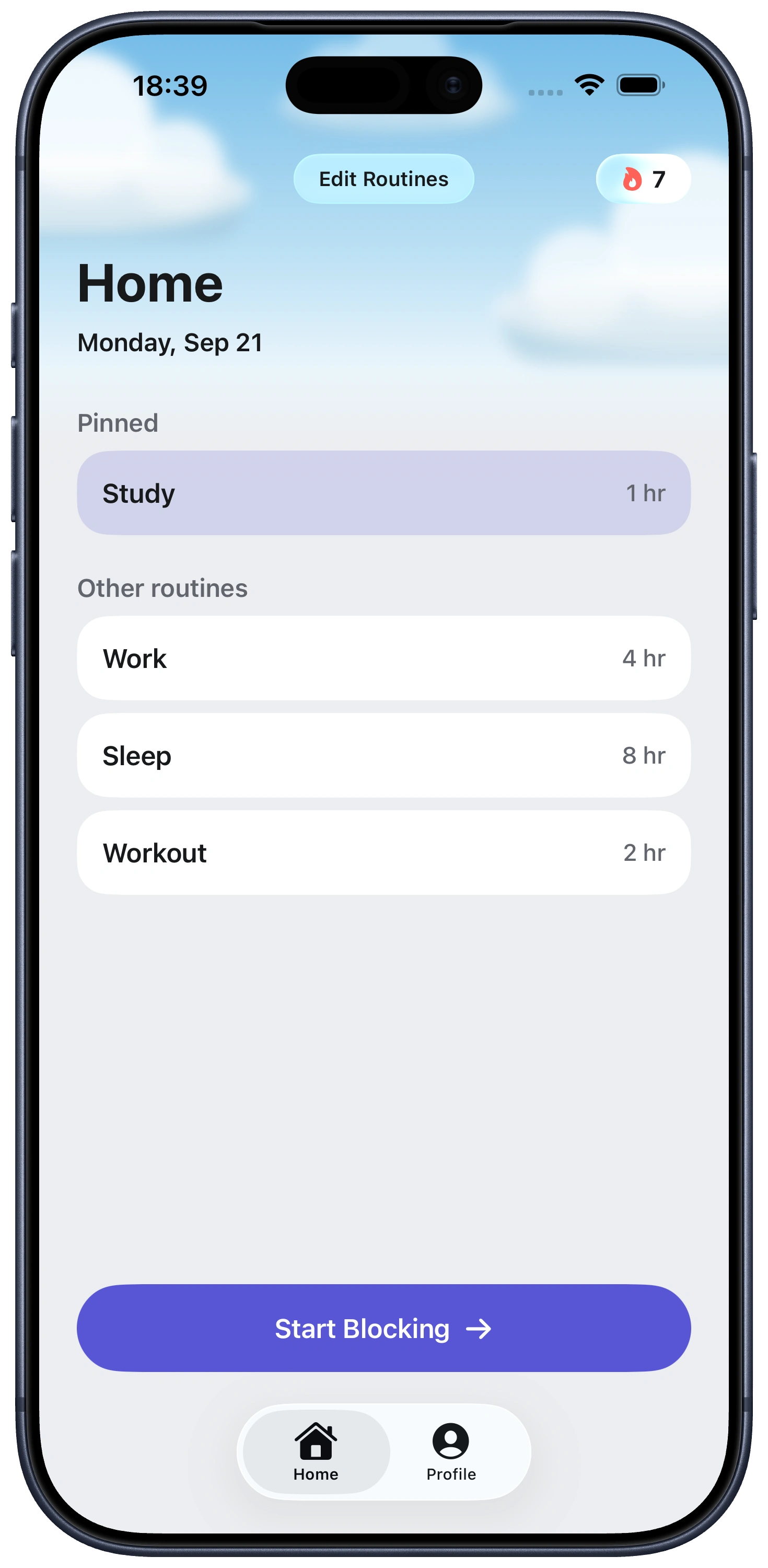
The short answer: use iPhone Screen Time if you want a daily allowance or scheduled downtime. Use Fella if you want LinkedIn unavailable by default all day, with one emergency 5-minute window when you genuinely need it.
LinkedIn is unusually easy to rationalize because it mixes necessary tasks with an open-ended feed. A recruiter message, job alert, industry article, profile view, comment, or connection request can all be a legitimate reason to open it. Once inside, posts and recommendations turn a purposeful check into browsing.
Blocking the app does not remove your profile or professional history. It changes access on this iPhone. That makes blocking a practical middle ground when deleting LinkedIn would create real costs.
| Method | Best for | Important limitation |
|---|---|---|
| Turn off notifications | Stopping job alerts, reactions, and connection prompts from pulling you in. | You can still open LinkedIn whenever the habit fires. |
| Apple Screen Time | A daily allowance or blocks during selected hours. | You manage the limit yourself and can change or extend it. |
| Fella | Keeping LinkedIn blocked all day by default. | It blocks the whole app and allows only one 5-minute emergency unlock per session. |
Start with notifications if alerts are the trigger. Go to Settings > Notifications > LinkedIn and turn off Allow Notifications. You can also reduce job, network, and content alerts inside LinkedIn. This removes invitations to check without restricting the app itself.
Use Screen Time for a schedule. Open Settings > Screen Time > App & Website Activity > App Limits > Add Limit. Find LinkedIn under its category, select it, tap Next, and choose the daily time. Downtime is better when you want most apps unavailable during evenings or work blocks.
1. Install Fella and choose LinkedIn. Select LinkedIn in the iPhone app picker. You can block it alone or alongside other feed-based apps. To compare tools before setting this up, see our free tools for blocking distracting apps.
2. Confirm the block. LinkedIn becomes unavailable as an all-day default. You do not have to begin a session each morning or remember to restart a timer.
3. Reserve the unlock for a defined task. Fella provides one 5-minute emergency unlock per session. Before using it, name the job: answer one recruiter, retrieve one saved posting, or check one application detail.
4. Let it relock automatically. When five minutes ends, the app closes again. That automatic ending matters because a vague “quick check” has no natural stopping point.
This is intentionally stricter than an ordinary timer. Fella can schedule blocking sessions through routines, but it does not provide usage charts or separate controls for the feed and inbox.
Move urgent conversations out of the app. If a recruiter relationship becomes active, ask to continue by email or phone. Then LinkedIn no longer needs to act like an always-open inbox.
Batch career work on a computer. A planned desktop session is better suited to applications, profile edits, and thoughtful messages than repeated phone checks. Fella blocks the selected iPhone app; it is not a cross-device or website blocker.
Separate opportunity from anxiety. More refreshes do not make a new role appear faster. Pick a regular time to review alerts and applications, then let the rest of the day belong to the work and relationships you already have.
Use Fella when LinkedIn is mostly an automatic feed check. It fits people who need occasional access but have learned that a flexible limit becomes a repeated override.
Use Screen Time when access should vary by hour. If LinkedIn is part of your job between 9 and 5 but distracting at night, scheduled Downtime is a better match than Fella's all-day model.
Do not hard-block your only recruiting channel during an urgent search. First establish email or phone routes, or use a lighter notification setup. A boundary should protect your attention without creating avoidable professional risk.
LinkedIn sessions run around 11 to 14 minutes on average, and the typical user checks the app about 7 times a week, roughly once a day. That's a very different shape from a doomscrolling app: it's not one long session, it's a habit of frequent, purposeful-feeling check-ins.
That framing is exactly what makes LinkedIn easy to justify. Eleven minutes doesn't feel like a problem in the moment. It's the repetition, another job alert, another notification, another "quick look" during work, that adds up without ever looking like the kind of usage people associate with a distracting app.
LinkedIn has no built-in tool for this at all. There's no in-app time limit, break reminder, or usage dashboard, only notification controls. Apple's Screen Time is the only native lever, and its Ignore Limit button undoes it in one tap.
For a scheduled or daily limit, use Settings > Screen Time > App Limits and select LinkedIn. For an all-day default, add LinkedIn to Fella; it stays blocked with one 5-minute emergency unlock per session.
No. Blocking the iPhone app does not delete your LinkedIn profile, connections, posts, applications, or messages.
Fella and iPhone Screen Time restrict the whole LinkedIn app, not individual tabs. If you need messages or job search throughout the day, notification cleanup or desktop-only access may fit better.
With Fella you can use the one 5-minute emergency unlock per session to check or answer a time-sensitive message. For frequent recruiter conversations, move them to email or leave LinkedIn unblocked during an active search.
It can be. App Limits and Downtime are useful for schedules, but self-managed limits can be extended or changed. Fella is for people who want a stricter all-day default.
Typical sessions run around 11 to 14 minutes, and users check the app about 7 times a week, roughly once a day. It's a habit of frequent short check-ins rather than long sessions, which is part of why it's easy to underestimate.
No. LinkedIn offers notification controls but no in-app time limit, break reminder, or usage dashboard. Apple's Screen Time is the only native option.

